How to Check If Your Code Is Deployed in D365 Finance & Operations
TL;DR — D365 F&O stores a version number for every installed model under ? → About → Version. If you configure your Azure DevOps pipeline to stamp that version with the build date, anyone on the project can tell exactly what code is running in each environment — no developer access required.
Every D365 project has a recurring interruption: someone asks a developer whether a specific fix is deployed. The developer stops, checks Azure DevOps or logs into the environment, and reports back. Repeat every sprint.
This doesn’t need to happen. D365 already tracks a version number for every installed model. The problem is that out of the box, that version defaults to 1.0.0.0 and never updates — because nothing forces it to. Once you wire it to your pipeline’s build number, the answer to “is it deployed?” becomes a self-serve check that anyone with a D365 login can do in under a minute.
Step 1: Find the version tab in D365
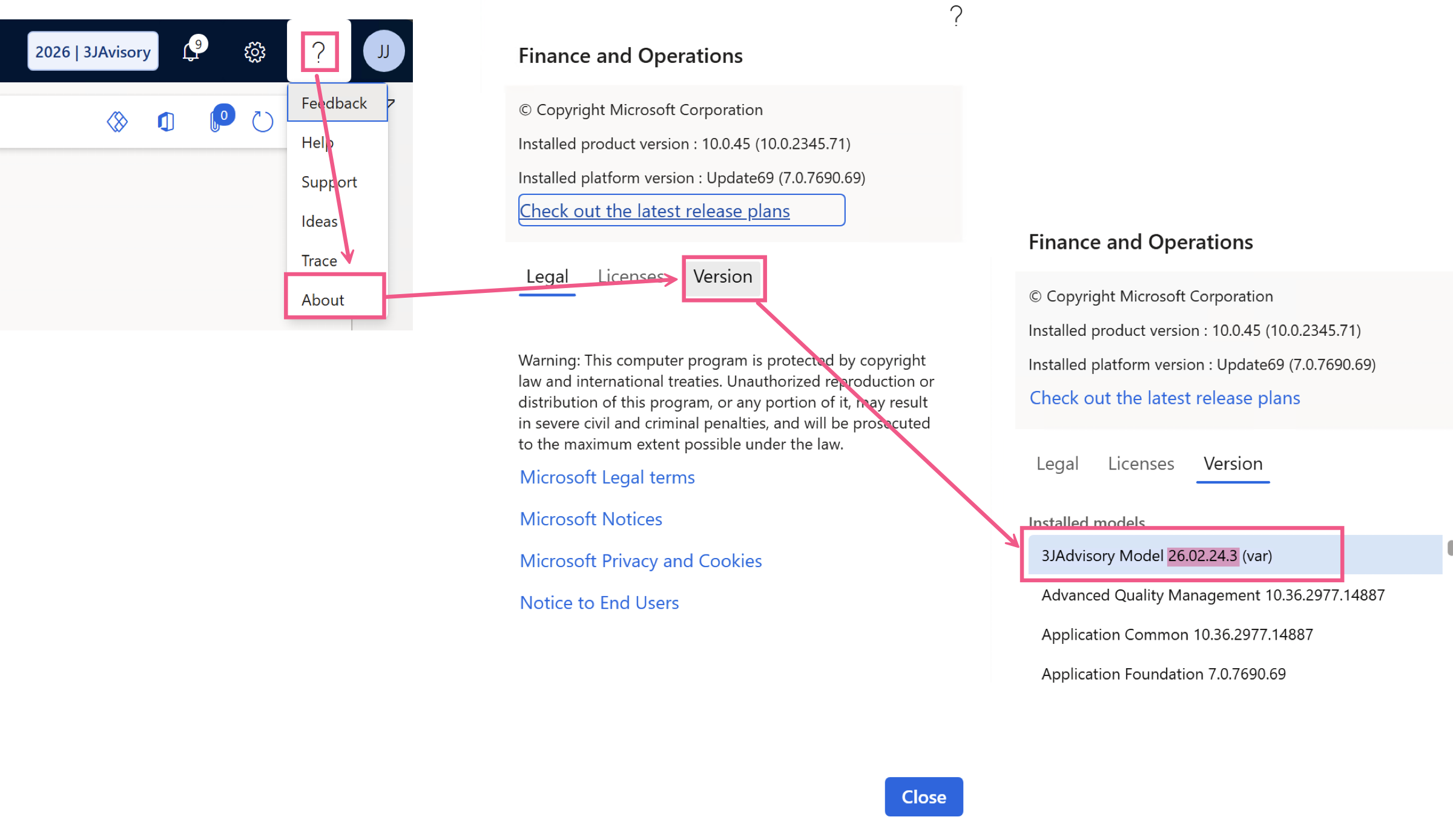
In any D365 F&O environment, click the ? icon in the top-right navigation bar, then select About.
The About dialog has three tabs. Legal, Licenses and Version. Version is the one you want. Open it.
You’ll see two blocks of information:
- Top section — Microsoft’s platform and application version numbers. These tell you which D365 release you’re on. Not what you’re after.
- Bottom section (Installed models) — A list of every installed model, each with its own version number. This is where your custom code lives.
Find your extension model in the list — it’ll be named whatever your team called it at the start of the project (ContosoExtensions, ProjectAlphaCustomizations, etc.). The version shown next to it is whatever was baked into the deployable package at build time.
If it says 1.0.0.0, the pipeline hasn’t been configured yet. Step 2 fixes that.
Step 2: Configure your Azure DevOps pipeline to stamp the version
Every D365 F&O model carries a version number that gets baked into the deployable package at build time. By default that version is a static 1.0.0.0 — because nothing in an unconfigured pipeline touches it. The goal is to replace that static value with your pipeline’s build number automatically on every build.
Set the pipeline build number format
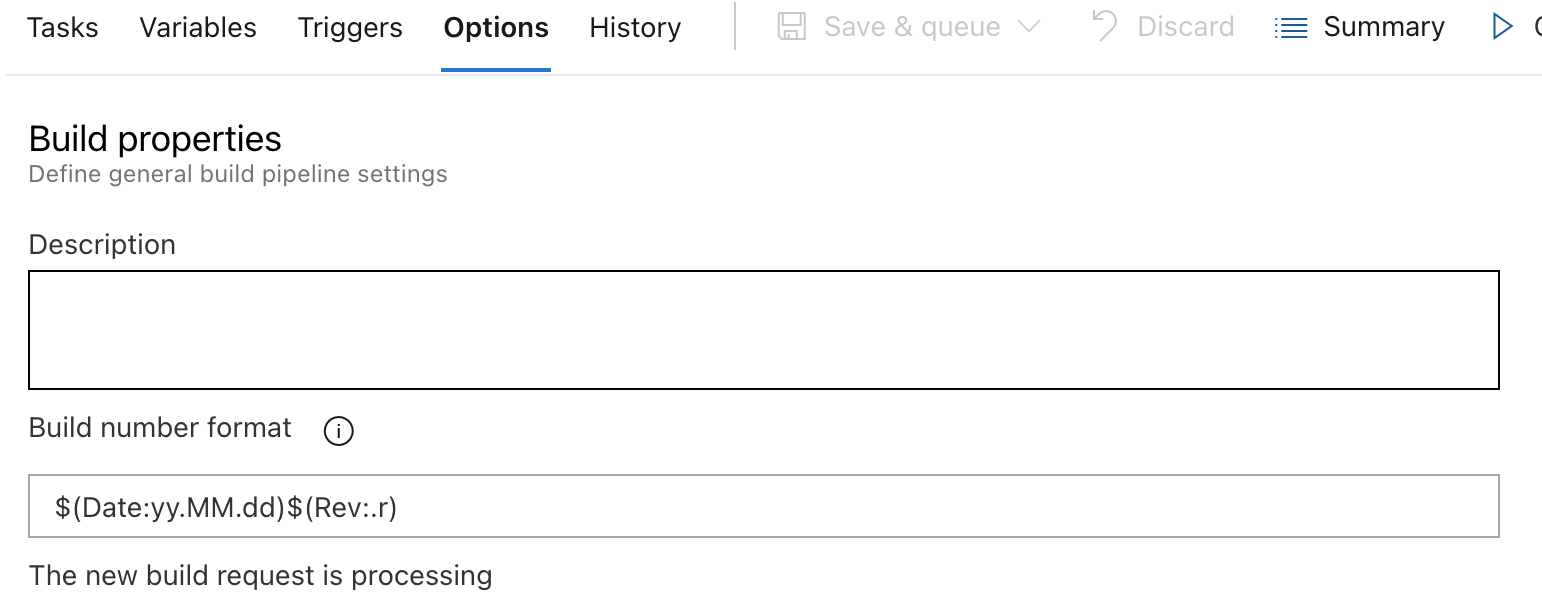
In your pipeline, go to the Options tab and find the Build number format field. Set it to:
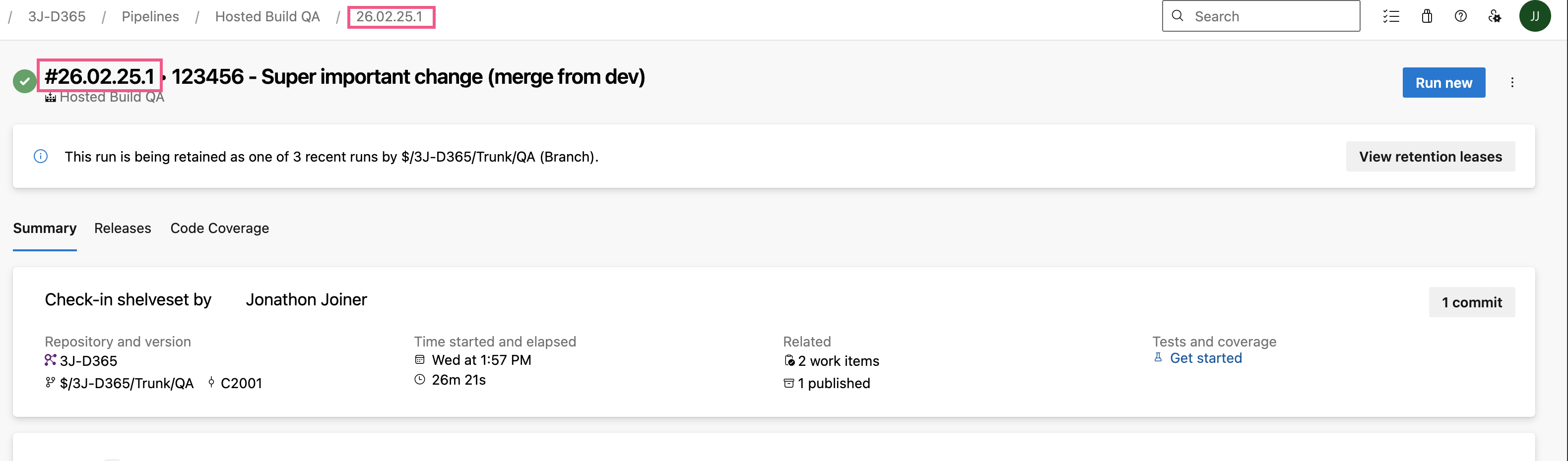
$(Date:yy).$(Date:MM).$(Date:dd).$(Rev:r)This controls what $(Build.BuildNumber) resolves to throughout the pipeline. The format above produces build numbers like 26.02.25.1 — year, month, day, and a counter that resets each day. Sortable, readable, and tells you exactly when the code was built.
This results in a build number as shown below.
Add the version stamp task to your pipeline
The task you need is Update Model Version, part of the Dynamics 365 Finance and Operations Tools extension for Azure DevOps. If you’re running a standard D365 F&O pipeline, this extension is already installed.
Add it to your pipeline before the build step and configure it as follows:
- X++ Source Location:
$(Build.SourcesDirectory) - Descriptor Search Pattern:
**\Descriptor\*.xml - Lowest Layer to Update:
VAR - Version number:
$(Build.BuildNumber)
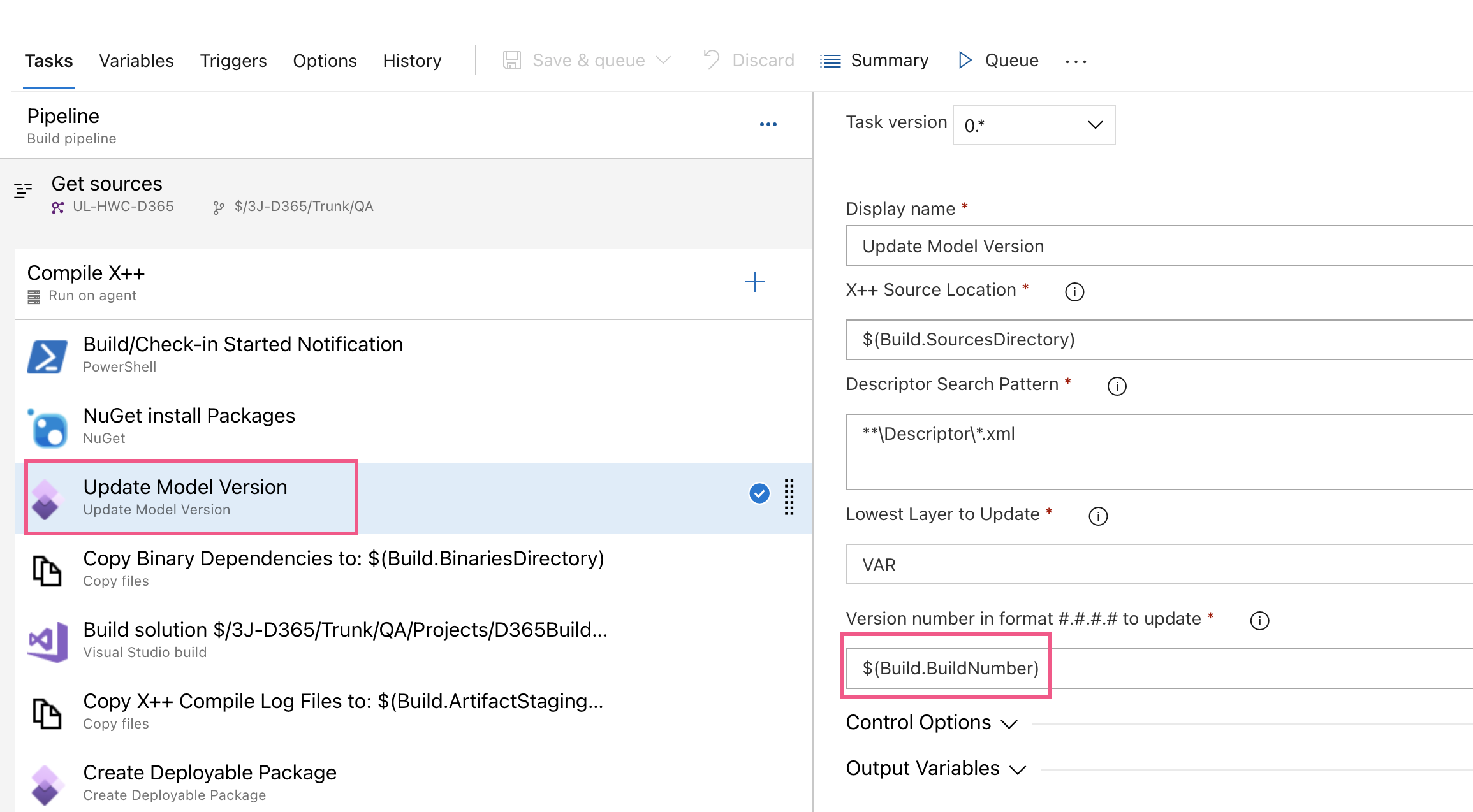
The Lowest Layer to Update setting is worth paying attention to. VAR means the task will only stamp models in the VAR layer and above — it won’t touch ISV or partner model versions, which is the right behavior on any multi-package project.
The task handles everything internally. No custom scripts, no string replacement, nothing to maintain.
Step 3: Verify the version is updating
After your next build and deployment, navigate back to ? → About → Version and find your model. Instead of 1.0.0.0, you should now see the build number from the pipeline run that produced that package.
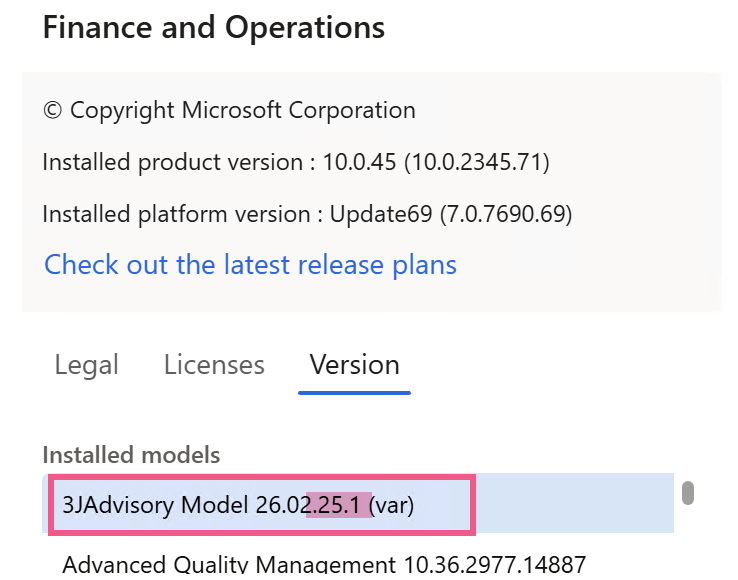
If it’s still showing the old version, check that the XppUpdateModelVersion task ran before the build step, and that the XppDescriptorSearch pattern is matching your model’s descriptor file.
Step 4: Read the version across environments
With this in place, log into each environment and check ? → About → Version. You might see something like this:
| Environment | Version |
|---|---|
| DEV | 26.02.15.3 |
| UAT | 26.02.12.1 |
| PROD | 26.01.28.2 |
From that table, anyone can answer the question without asking a developer:
- The fix was built on February 15.
- DEV is current.
- UAT is running February 12; the fix hasn’t been deployed to UAT yet.
- PROD is on a January build which is expected since UAT hasn’t signed off on the February code.
What to tell your team
Give people two things: the navigation path and the name of your extension model.
Path: ? → About → Version
Model name: Whatever your team named it — they’ll find it in the list once they know what they’re looking for.
Reading the version number: it’s year.month.day.build. Higher is newer. Compare across environments. That’s it.
One pipeline configuration, one thirty-second explanation to the team, and the “is it deployed?” question stops landing in developer DMs.
Developer time shouldn’t go to answering “is it deployed?” — that’s a process problem disguised as a question. If your D365 project has friction like this, let’s talk.